Tutorial 4 of 6
Compare over time and side by side
Intermediate 10 min
Save baselines and see what is new, resolved or re-rated after the next run, then compare two images or two package versions as an A/B scenario.
Security data changes even when your code does not: new advisories are published, base images go out of support, EPSS scores move. Provenance keeps the history so you can see what changed.
1. Save a baseline
After a run, choose Report → Save baseline snapshot… (or Save baseline under Next steps). Give it a name such as Release 2.3.0. A baseline stores the findings of that moment — keys, severities and status — not the tool output.
2. See the drift
Open Compare → Over time (baselines). The trend chart shows open findings per severity for every baseline and Now. Pick From and To to list:
- New findings — appeared since the baseline (a new advisory, a new component),
- Resolved findings — gone (you upgraded, or an advisory was withdrawn),
- Severity changed — re-rated advisories.
Each check also keeps its last six results: open an asset, then History on a check to see the date, finding count and change per run.
3. Two assets side by side
Open the Container fleet review template and run all checks. Then choose Compare → Two assets side by side with .NET 6 runtime as Asset A and ASP.NET 8 runtime as Asset B.
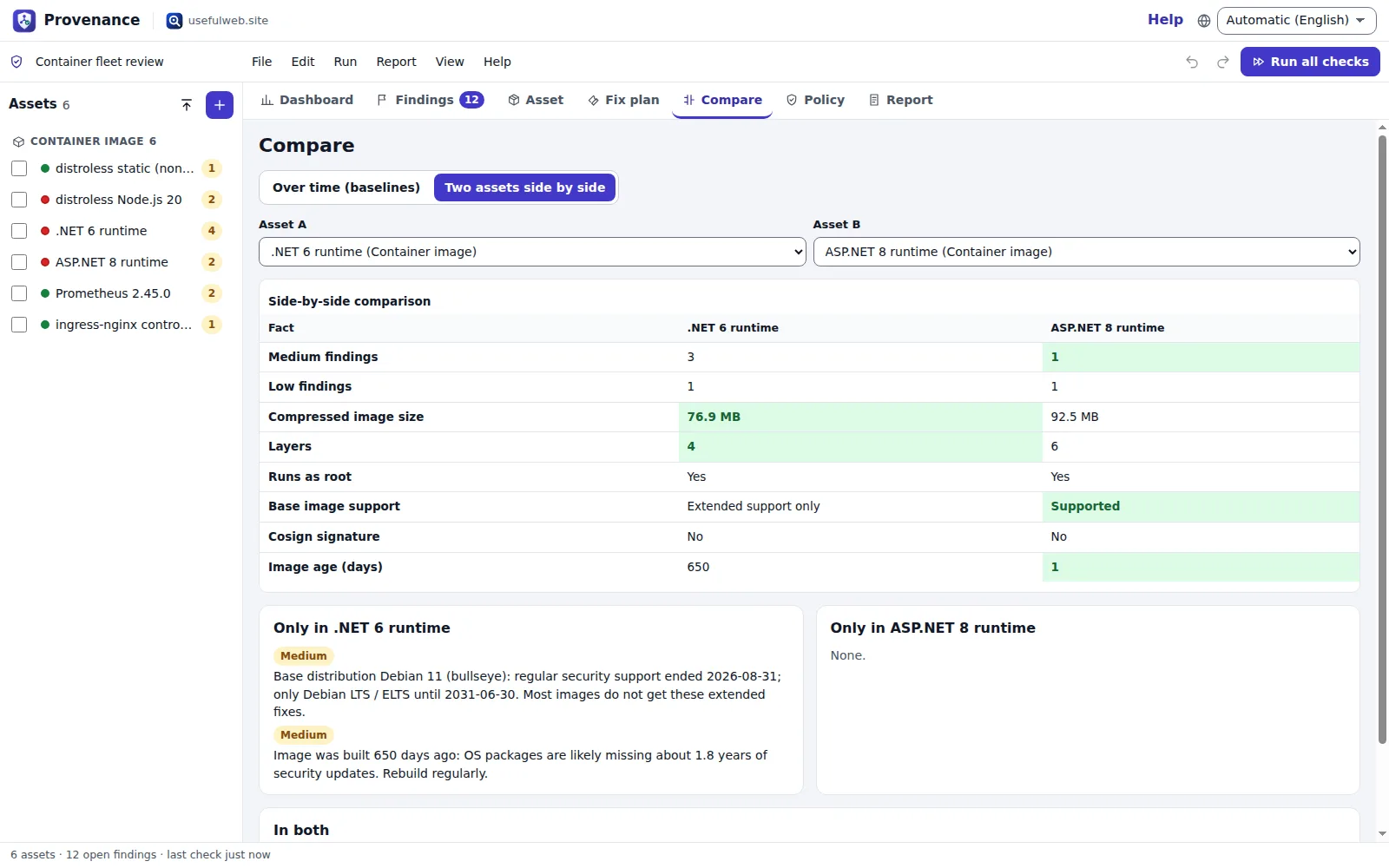
The table lists every fact both assets have — compressed size, layers, root user, base image support, cosign signature, image age, finding counts — and highlights the better value (marked (better) for screen readers). Below it, Only in A, Only in B and In both split the vulnerabilities and licence findings.
4. Scenario: a different package version
To test an upgrade before doing it, select a package asset, use Edit → Duplicate asset, change the Version of the copy and run its checks. Compare both under Two assets side by side: you see which advisories the new version closes and whether its dependency graph grows.
The same works for SBOMs: duplicate the SBOM asset, paste the SBOM of the next build, run, compare.
Ready to try it?